Getting started
How can you preview a garden makeover from your own photo?
By GardenRender AI · Planning ideas and concept comparisons
You may know what you dislike about your garden without knowing what to put in its place. Would a dining area make the patio more useful? Would you prefer less paving, more planting or simply a different style?
A photo-based garden preview lets you explore those choices in a view you recognise. Start with a photo of your own space, choose a direction and compare the concept with the original. It gives you something concrete to react to before deciding which ideas deserve a closer look.
What could change without redesigning the whole garden?
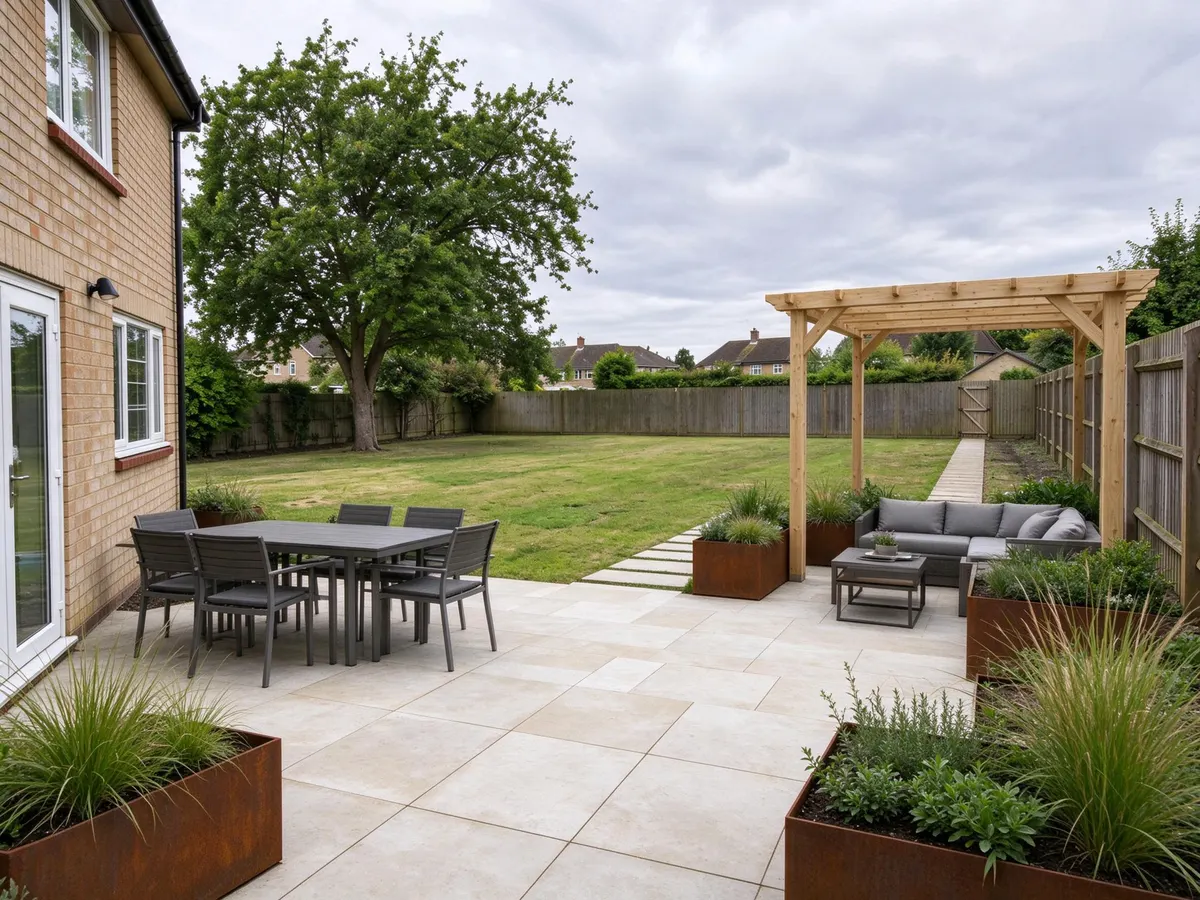
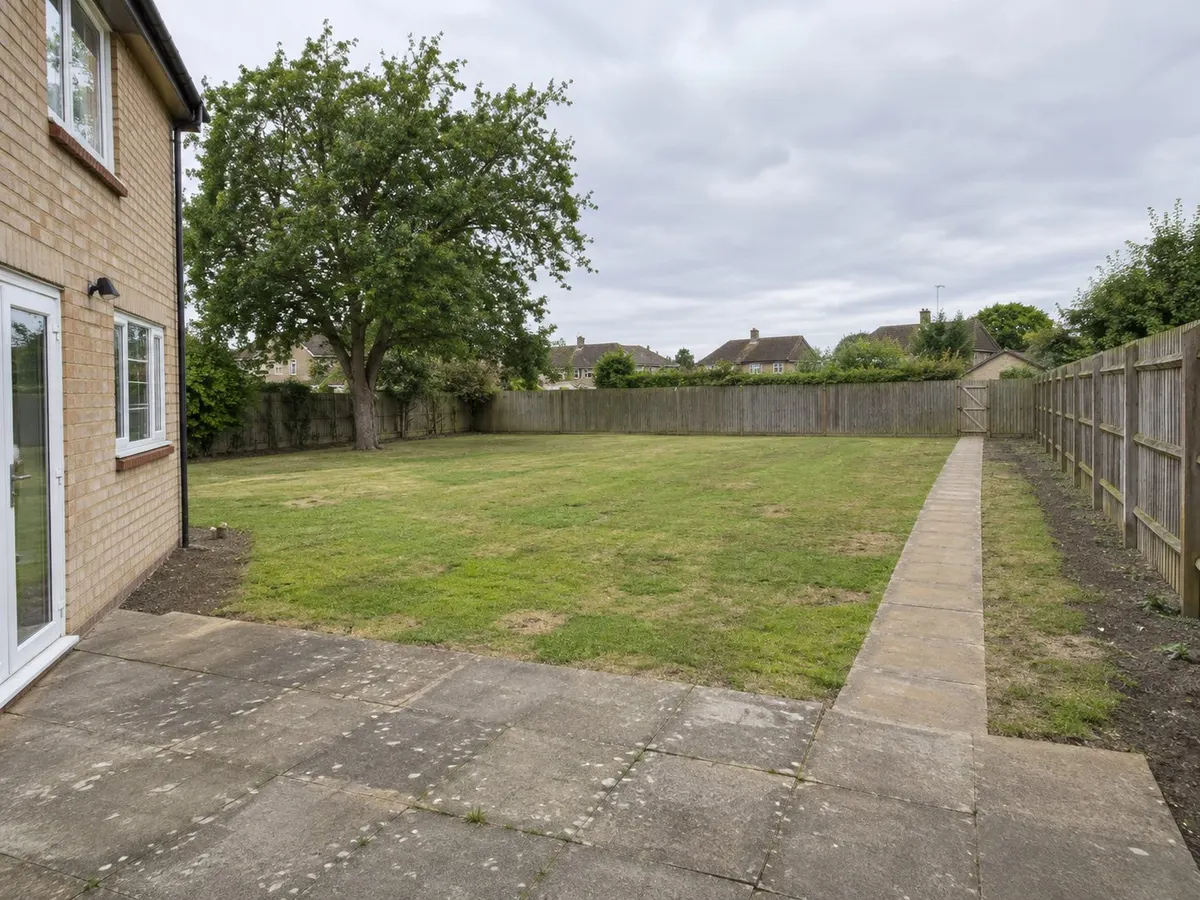
In this example, the aim was to refresh the terrace beside the house while leaving room for the lawn. The starting garden is AI-generated, and the result was made with Seedream 5.0 Flash on 14 November 2026. It is a demonstration, not a customer project or completed landscaping.
A patio-focused makeover
Compare foreground paving and seating with the retained open lawn.
The side route and requested seating count changed. Neither layout nor building details were measured.
Both images are AI-generated editorial demonstrations, not a customer project or completed landscaping. Generated 2026-11-14. A case may be reused where it answers a different planning question.
Compare the same synthetic garden before and after a patio-focused design concept. Look at the foreground paving and seating, then check the lawn and route beside the fence.
The concept introduces pale paving, a dining table and a pergola lounge. The open lawn and mature tree are broadly retained. It is a useful way to explore a question such as “Would I enjoy eating and sitting here?” without committing to a whole-garden makeover.
There are also differences to question: the side path was redrawn, and the dining area has more seats than requested. Those details matter. You can like the look of the paving while deciding that the route or furniture arrangement would not work for you.
Start with the part of the garden you would use more
Think about what is missing from your time outside. A garden that feels unfinished might need a place to sit rather than more features. A patio that feels cramped might benefit from fewer pieces of furniture rather than a larger entertaining area.
Choose one question for the first preview:
- Where could we eat outside while staying close to the house?
- What would a quiet seating corner look like here?
- Would a more open centre suit how we use the garden?
- Would a different planting style make this view feel more inviting?
You do not have to answer every garden question in one image. Starting with a main use makes it easier to decide whether the result helps.
Use a photo that shows the real context
Take the photo from somewhere you already look at the garden: the back door, the terrace or a familiar spot beside the house. Include the area you want to change and useful landmarks such as a gate, fence corner, tree or doorway.
You do not need to stage a perfect garden. You need to see enough of the ground and boundaries to compare the result. Avoid a view that hides the route you want to keep or makes the space hard to recognise.
The photo checklist explains framing, light and supported files if you need help choosing a starting image.
Choose a style, then describe what matters to you
In GardenRender AI, upload your photo and choose the relevant area and a style. You can add a short description in everyday language: “A dining area beside the house, with the lawn left open and a clear route to the gate.”
That is enough to express a useful starting direction. You do not need specialist design terminology. Mention anything you want to keep, but check it in the result: the image may still alter a building, fence or path.
If you are unsure about the style, try comparing two directions using the same original photo. Modern puts the emphasis on a different look from Cottage, but the question remains whether you would enjoy using that version of your garden.
What should you look at when the result appears?
Start with your original question, then work through the practical details.
| Look at | Ask yourself |
|---|---|
| The main activity | Would I actually use this place to sit, eat or spend time outside? |
| Doors and routes | Can I still see how I would move between the house, garden and gate? |
| Open and planted areas | Is the balance closer to what I want, or has the image filled too much space? |
| Existing features | Has a tree, fence, doorway or boundary changed? |
| The atmosphere | Do I like the materials and planting, or mainly the flattering light? |
You are allowed to keep one useful idea and reject the rest. Perhaps the pale surface works for you, but the pergola does not. That is a clearer decision than accepting the entire image because it looks attractive.
What can you learn from another version?
Return to the original photo and change one main decision: a different style, more open space or a smaller seating area. Keep the purpose stable so you can explain what you prefer.
The AI may vary other details as well. Treat the comparison as a way to discover preferences, not as an exact simulation. If it invents extra space or moves a boundary, do not use that part of the image to judge what will fit.
For a paved area beside the house, the Patio page focuses on surfaces, seating and shade. For the wider garden, start with your own photo.
What do you do with an idea you like?
Save the useful concept and note the details you want to investigate: a surface colour, a seat near the house or an open view across the lawn. Keep your original photo too, together with a list of anything the AI changed incorrectly.
GardenRender AI saves generated results in My designs, where you can revisit, download or delete them. Uploaded originals are not stored alongside those results, so keep your own copy.
Before buying materials or arranging work, check the actual space separately. A concept image does not establish dimensions, drainage, structural details or suitable plants. Use it to explain the direction you like, then work out the practical plan with the relevant local professional.
How much do you need to try it?
New accounts receive three credits after Google sign-in. Each successful generation uses one credit; additional credits are available as one-time packs. There is no need to generate every style to make a first comparison.
See the current credit options, or upload a photo and explore one change.
Planning references
General context, not measured demand or proof of a generated example.
- RHS: planning a garden and preparing a briefGeneral planning context, not evidence of this fictional example or demand volume